
Features
What you can show in your takeaway
Update menu boards and schedule your offers from one dashboard.
EXAMPLES ON SCREEN
See what your screens can show.
Main menu board
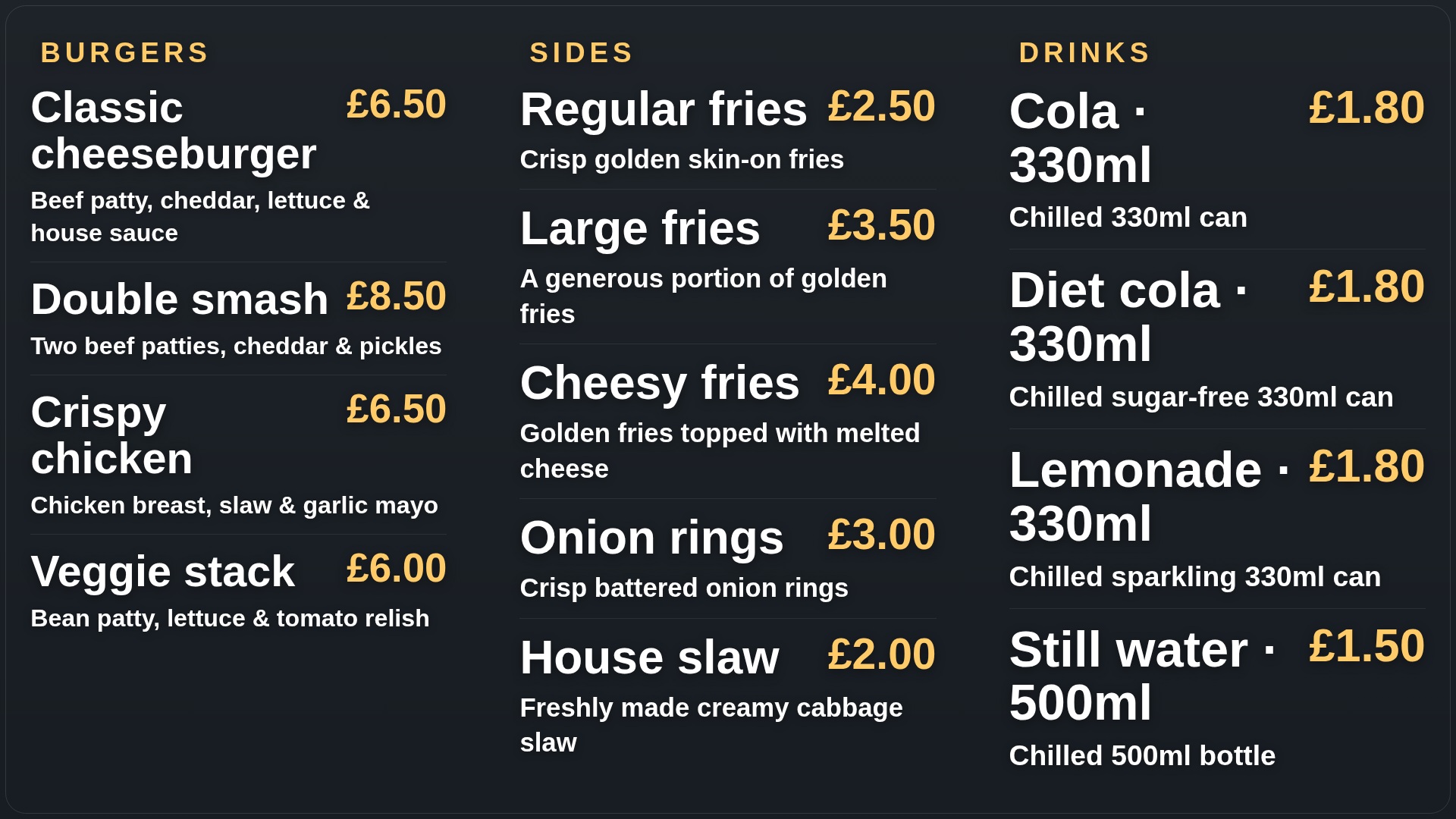
Make categories, prices and popular dishes easy to read on a screen behind your counter.
More detailLess detail
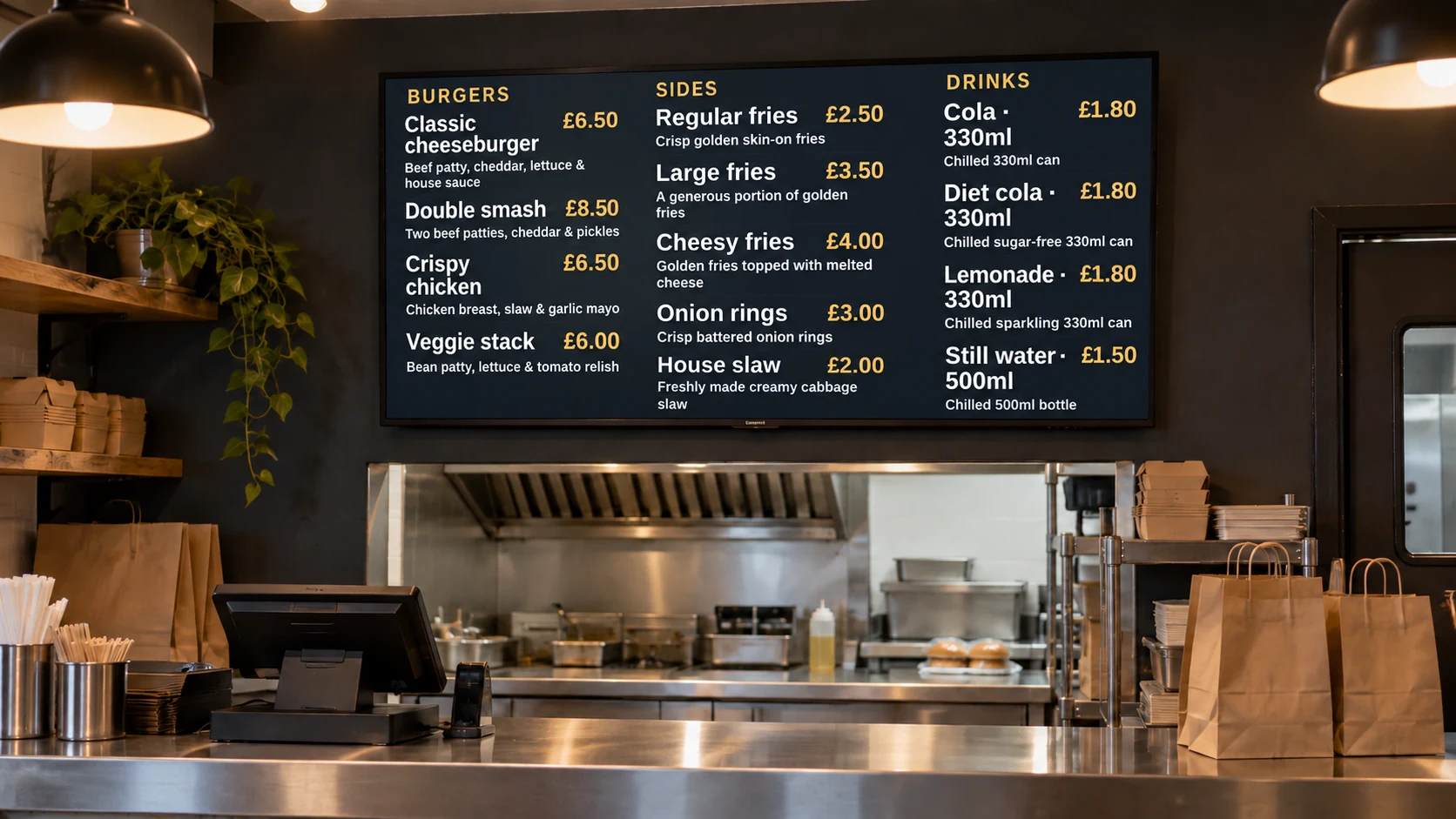
Show categories, prices and popular items on a wall-mounted TV behind the counter.
Meal deal screen
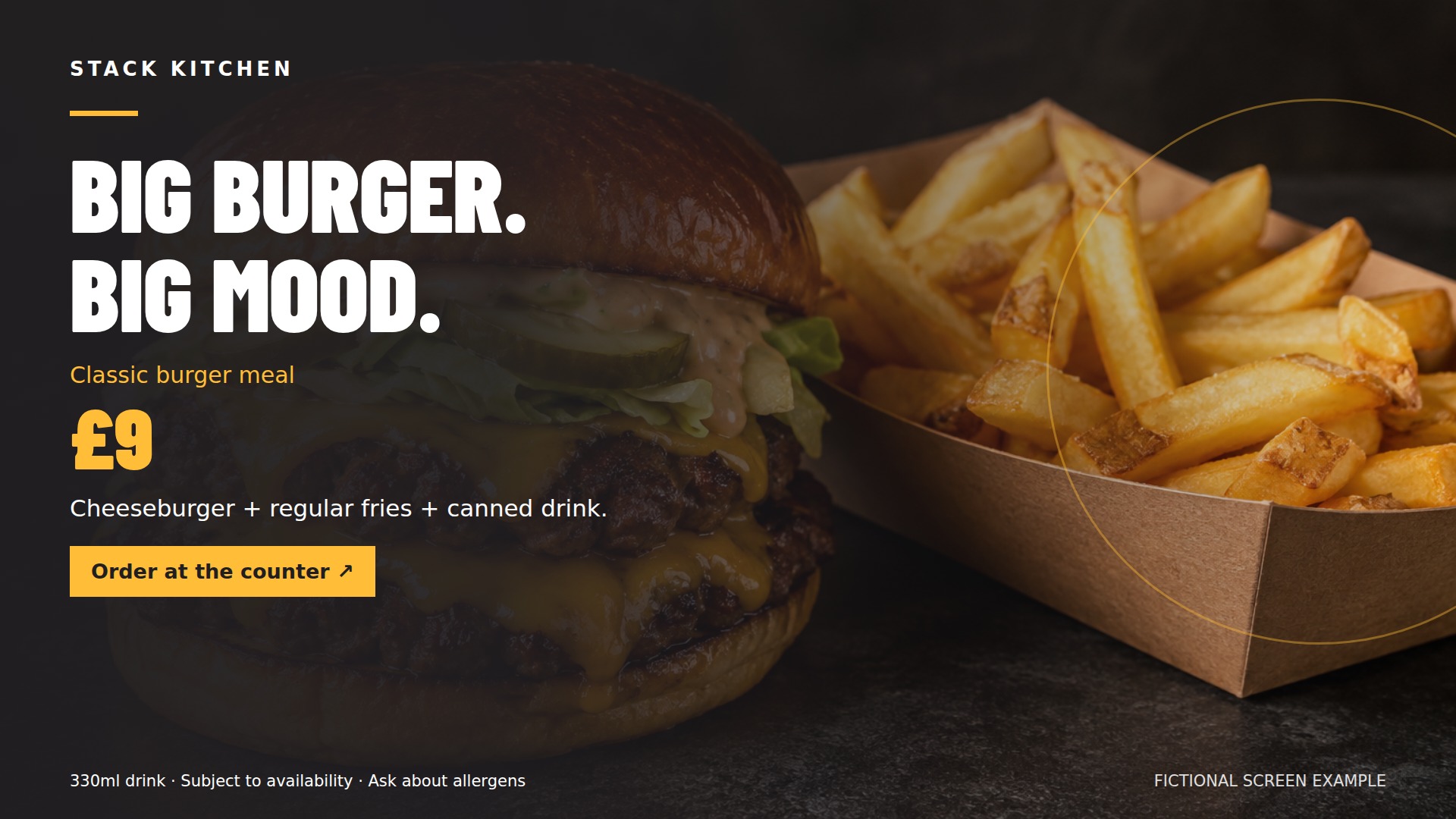
Give lunch deals, collection offers and delivery promotions their own screen beside the main menu.
More detailLess detail
Rotate lunch deals, collection offers and delivery promotions beside the main menu.
Timed menu changes
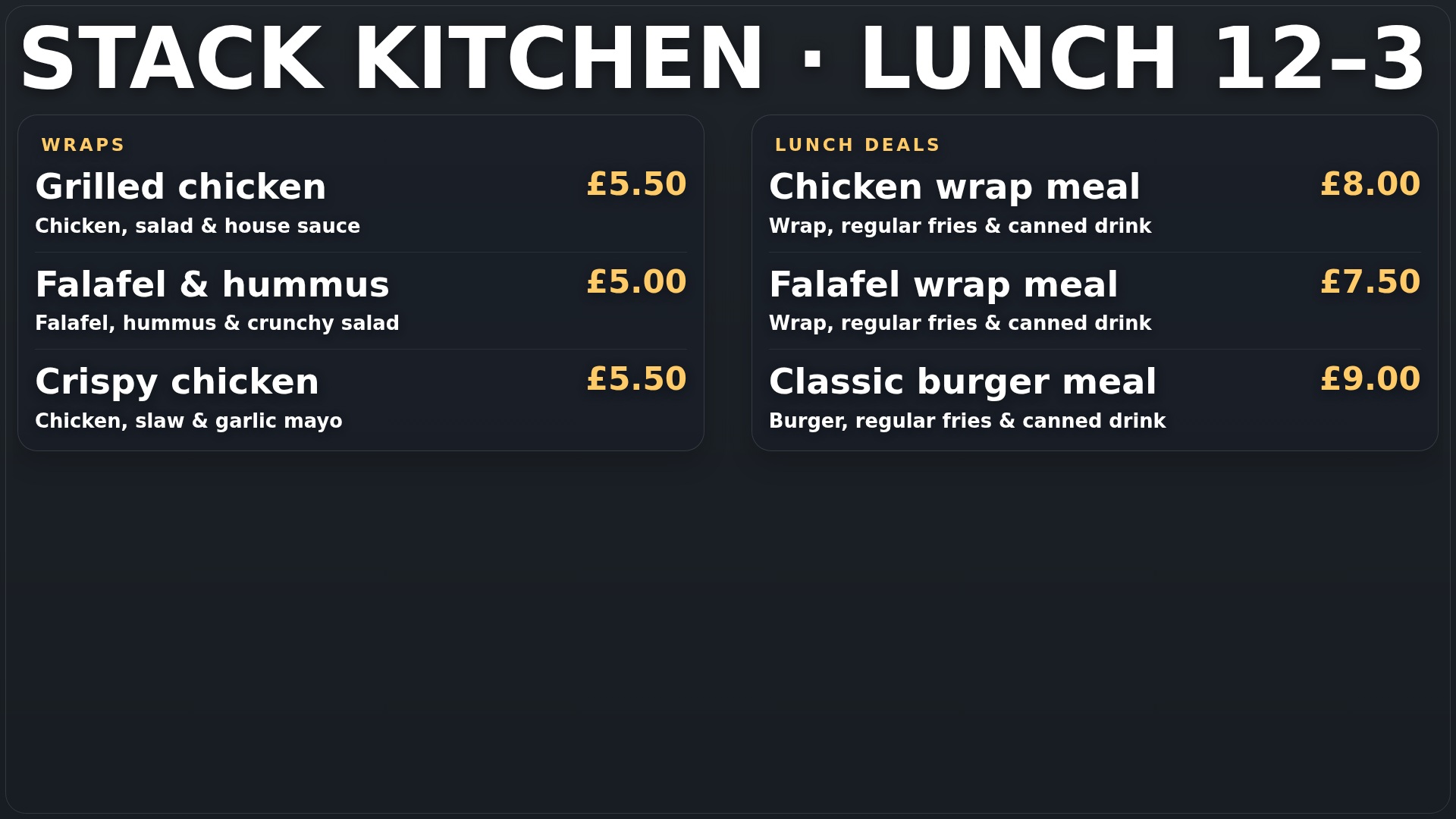
Schedule lunch and evening menus so screens change with your service without staff replacing device files.
More detailLess detail
Switch from lunch to evening menus without staff changing files on the device.
Update from your dashboard
Update prices and menus across one or more screens from your dashboard instead of rebuilding USB sticks.
More detailLess detail
Update prices, swap lunch and evening menus, and control one or more screens without rebuilding a USB stick every time.
Choose what plays
Arrange menu and promotional content into playlists, then schedule changes for the days and times you need.
More detailLess detail
Combine your content in playlists and schedule it for different days and times.
Give every screen a purpose
Give menu, offer and collection screens relevant playlists and check recent connection status from your account.
More detailLess detail
Choose a playlist for each screen and check its recent connection status from your account.
Upload food artwork and existing menu documents
Upload food photos, videos and existing menu documents, then check converted prices and text before display.
More detailLess detail
Add food photographs, offer graphics and MP4 videos to Media. An existing PDF menu or PowerPoint can be imported as ordered still images, ready to review and add to a playlist or folder slideshow. Presentation animations, transitions and audio are not retained. Check converted prices and small text before displaying them to the queue.
Schedule service menus and expire promotions
Schedule lunch and evening menus, choose item durations and set expiry dates for limited meal deals.
More detailLess detail
Create playlists for the main menu and promotional screens, then choose the order and display duration of each item. Schedule lunch and evening programmes for the appropriate days and times. Put an expiry on a limited meal deal so the artwork stops being selected after its deadline, and update menu availability when items change.
Add ordering links and service information
Combine ordering links, branding and short service notices with menu content while keeping prices readable.
More detailLess detail
Apply reusable QR code, logo, text or date/time overlays to selected playlist items, for example beside a collection offer. Use a ticker for short service notices and Special pages for a clock, countdown or weather. Preview the layout so prices stay readable. Web ordering pages, live weather and other internet content require a connection.
Check each counter player from your account
Review each counter player’s connection, choose compatible equipment and understand which updates need internet access.
More detailLess detail
Give menu, offer and collection screens recognisable names, then check their latest connections and configured email alerts. Use a compatible browser or Android player and confirm the equipment suits the service environment. Downloaded media can continue on suitable configured players during a connection loss; new menu changes and live content need connectivity.
Call collection numbers with temporary messages
Let staff send collection numbers to an assigned screen, with normal playlist content returning afterwards.
More detailLess detail
Set up a named collection message with its destination screen, heading and display duration. Staff enter an order number in admin or the separate staff page. The player receives queued messages when it checks in, shows them over normal playback and resumes the playlist afterwards. Optional chimes require working speakers and suitable audio permissions.
Review partner promotions before they appear
Collect partner artwork through private upload links, review submissions in Media and choose what reaches your screens.
More detailLess detail
If advertiser tools are enabled, store partner contacts, agreed rates and terms alongside your screen administration. Email a private, single-use upload link requesting one JPG, PNG or WebP graphic. The submission arrives in Media, where you review it before adding it to a playlist. Advertiser invoicing and payment collection remain separate responsibilities for your business.